
How to Use the MRCARTOOL M30 GPS Speed Display

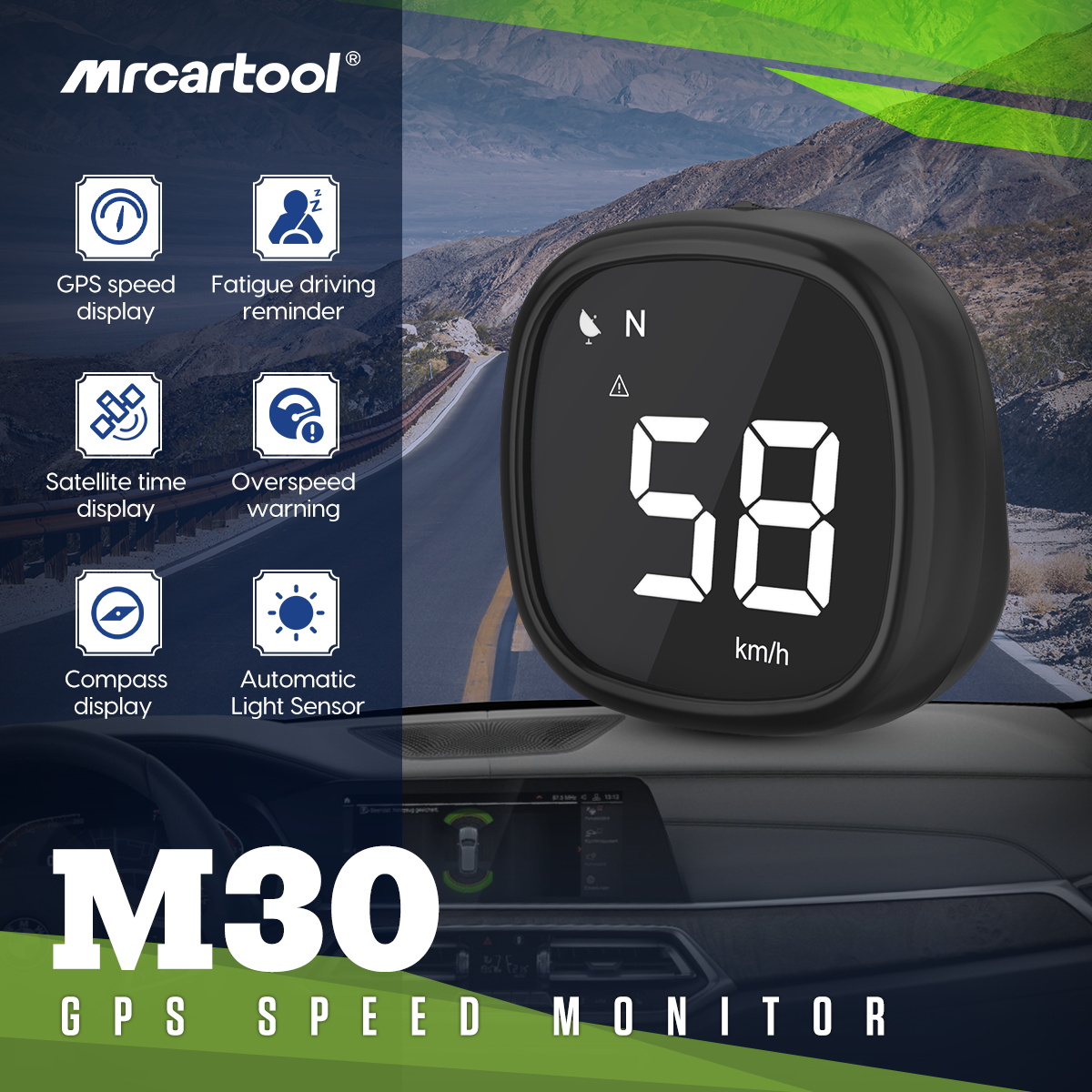
The MRCARTOOL M30 GPS speed display adds a large satellite-derived speed readout, compass direction, satellite time, overspeed warning and four-hour fatigue reminder to vehicles with a suitable USB power source. It does not need vehicle speed data to calculate GPS speed. A dependable setup starts with a low, unobstructed mounting position, protected cable routing and a clear view of the sky. Let the receiver acquire a stable fix while stationary, select the required interface, then compare the display with a trusted reference before using speed compensation or an alarm threshold.
Quick answer: Clean a low dashboard position that remains in the driver’s normal glance zone without blocking the road, instruments, vents or airbags. Dry-fit the M30 before applying its tape. Route the supplied 1.5 m USB cable to a switched vehicle USB supply without crossing an airbag seam, steering control or pedal area. Power on outdoors with the vehicle stationary and wait for a stable satellite reading. Slide the side function control left or right to move among speed/compass, satellite time, fatigue reminder and speed-compensation interfaces. Confirm the unit and displayed speed on a safe steady-speed run. Adjust only through the labels shown on your exact unit, stop before changing settings and treat GPS speed as unavailable in tunnels or weak-signal areas.
In this guide
Know what the M30 displays
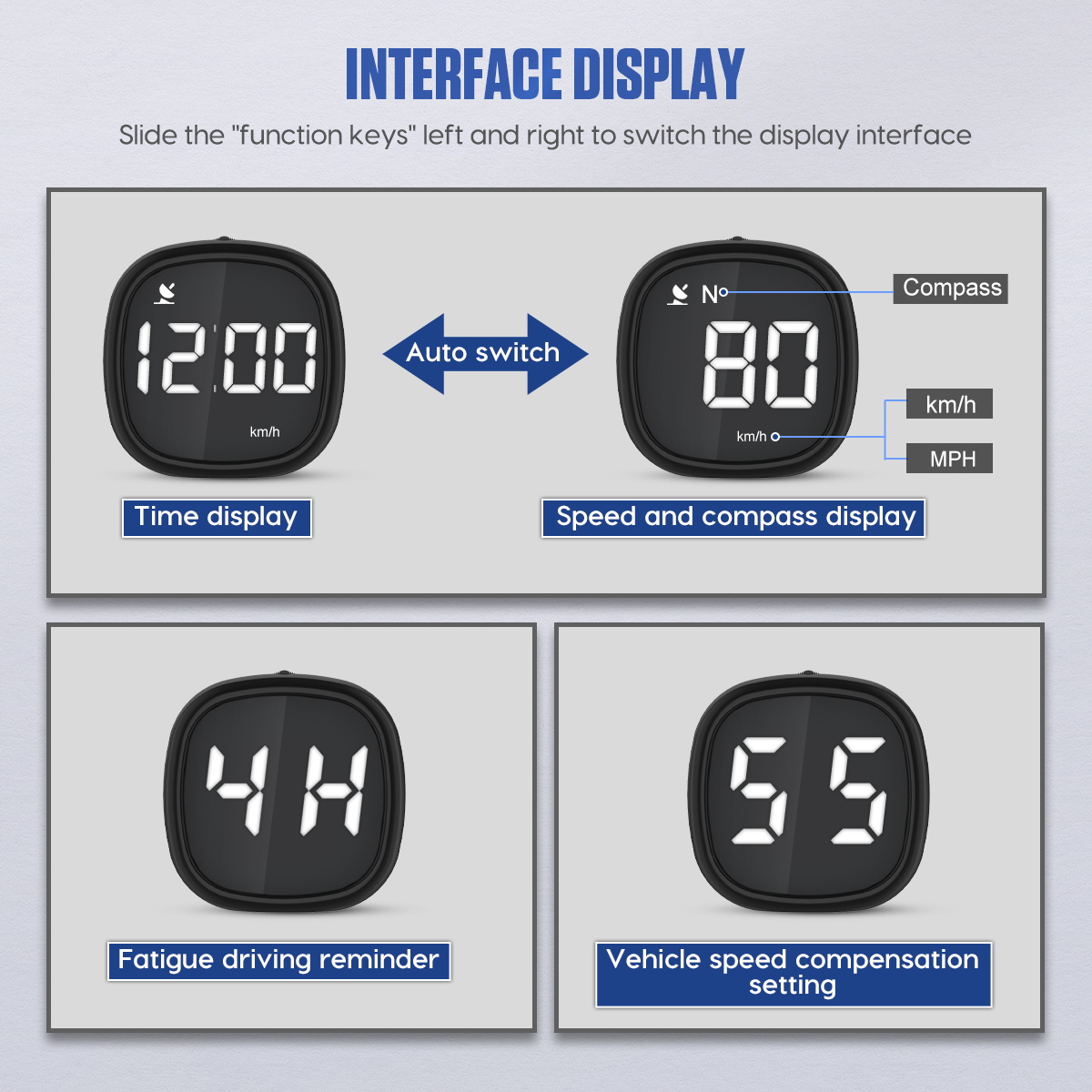
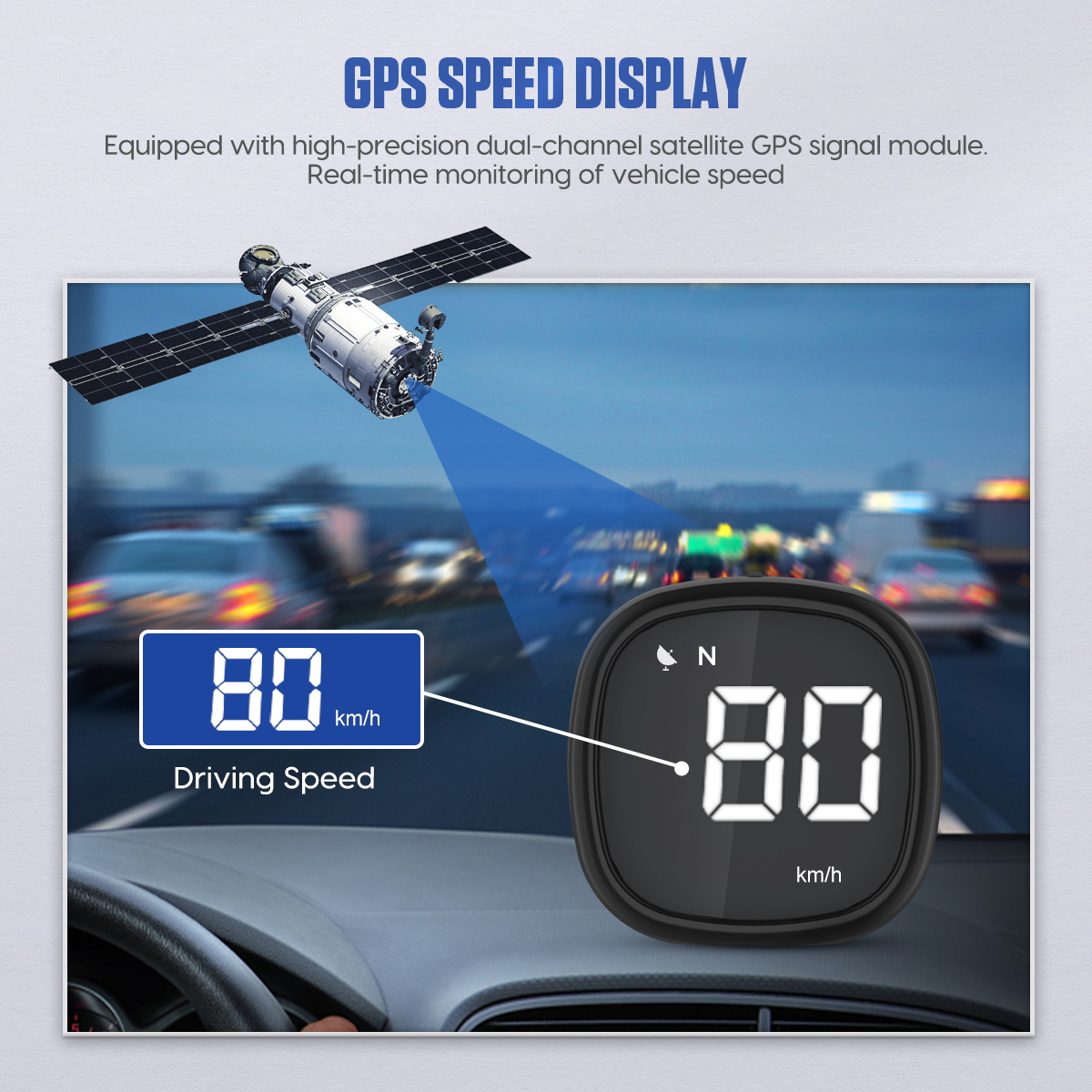
The current exact product page describes a dual-channel GPS/BeiDou satellite module. Its main functions are GPS speed, compass direction, satellite time, overspeed warning and a fatigue-driving reminder. The official interface graphic shows a speed-and-compass page, a time page, a 4H fatigue reminder and a vehicle speed-compensation setting. The supplied package contains the M30, a 1.5 m USB cable, tape and a printed manual.
Although the current product title includes the word OBD, the retained instructions and package list show a USB-powered satellite display, not an OBD diagnostic connection. Do not push a USB plug into an OBD socket or assume the M30 reads engine or transmission data. Use only a compatible vehicle USB power source and the supplied connection type. GPS speed can be useful in older vehicles, but it remains independent of the dashboard speedometer and may update at a different rate.
The display must never create a new driving hazard. Mount it where a brief glance is sufficient and where it cannot obstruct the road, warning lamps or required instruments. Keep it outside airbag deployment zones, secure the cable away from pedals and steering parts, and stop in a safe place before changing pages, compensation or alarms. A fatigue reminder cannot judge whether a driver is fit to continue.
Choose a safe mounting point
1. Dry-fit before using the tape
Sit in the normal driving position and place the unpowered M30 at candidate locations. A good position is low on the dashboard, close to the forward line of sight but below the road scene. Check the full steering range, instrument cluster, windshield view, demister outlets and passenger view. Confirm that reflected digits are not distracting at night and that the screen remains readable in daylight without forcing you to lean.
Do not mount on a soft airbag cover, an A-pillar trim panel containing a curtain airbag, a moving column shroud or a surface that becomes dangerously hot. Check local windshield and dashboard-mount rules. The unit should remain stable under braking, cornering and rough-road vibration; loose placement is not an acceptable trial once the vehicle moves.
2. Plan the USB cable route
Connect the cable loosely for the dry run. Route it along a fixed trim edge toward a switched USB supply. Leave enough service slack at the M30 that the connector is not pulled, but no loop that can fall into steering, shifter or pedal movement. Avoid sharp edges, heater outlets and trim gaps that pinch insulation. If a trim panel must be removed, check the vehicle procedure and airbag locations first.
3. Clean, attach and strain-relieve
Once position and cable path pass the checks, clean the approved dashboard surface with a material-safe method and let it dry completely. Apply the supplied tape without covering a sensor or ventilation path, press the base evenly and allow the adhesive its specified set time. Support the cable near the unit so connector movement does not peel the tape. Recheck the forward view from every normal seat position before driving.
Power on and acquire satellites
4. Start outdoors while stationary
Park in an open area away from a roof, dense trees and tall buildings. Connect the M30 to the selected USB supply and switch the vehicle to the required accessory or run state. Allow the receiver time to initialize. A first fix after storage, transport or a large location change can take longer than a routine restart. Do not begin adjusting compensation while the speed value is still searching or unstable.
The product page says the M30 starts with the vehicle and sleeps automatically when parked. Verify that behavior with your actual USB outlet: some remain powered after key-off. If the display stays awake, follow the vehicle’s outlet timing and the included manual rather than assuming it will shut down immediately. Avoid leaving any accessory connected if it risks battery discharge.
5. Confirm a usable signal
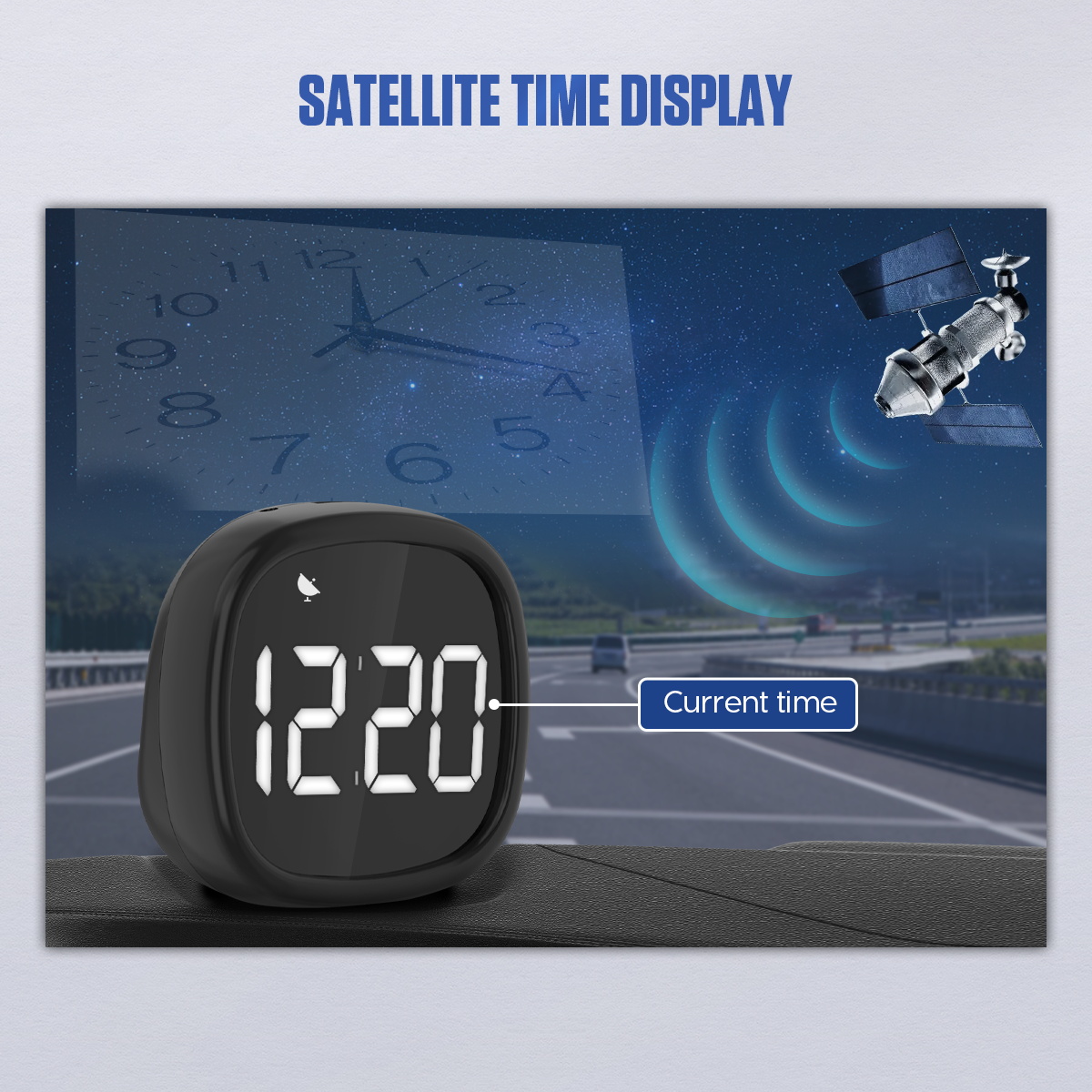
A zero speed while stationary is expected, but it does not alone prove a good satellite fix. Confirm that satellite time and compass information appear plausibly and that the display begins tracking once the vehicle moves in an open area. Satellite time may reflect its configured time basis or offset; do not change it until the signal is stable. A compass heading derived from movement may be unreliable while stopped or creeping.
Use the M30 display interfaces
The exact official interface graphic instructs the user to slide the side function control left or right to switch display interfaces. It shows four destinations: satellite time, speed with compass, a 4H fatigue reminder and vehicle speed compensation. Make interface changes only while stopped. Move one screen at a time, note the current labels and wait for the display to settle before deciding that a setting changed.
Speed and compass
Use the large central digits as the primary GPS speed field and the smaller direction field as a supplementary orientation cue. The page imagery shows km/h and mph capability; confirm the active unit every time the device is installed, reset or moved between vehicles. A correct number in the wrong unit is a serious interpretation error. Compass direction is informational and does not replace a mapped route or safe visual navigation.
Satellite time
The time screen can provide a clock independent of the vehicle radio. Check it against a trusted time source after satellite lock and account for any time-zone or daylight-saving offset exposed by the exact unit. A stable but offset clock can indicate configuration rather than poor reception. Do not repeatedly alter it while the receiver is still acquiring.
Overspeed warning
Set an overspeed threshold only while parked and only after confirming km/h or mph. Choose a value based on applicable road rules and operating policy, not as permission to drive at that speed. The warning is a prompt, not a cruise controller; it cannot see temporary limits, weather, traffic or tire restrictions. If the alarm distracts the driver, stop and correct the threshold or volume setting through the exact on-device labels.
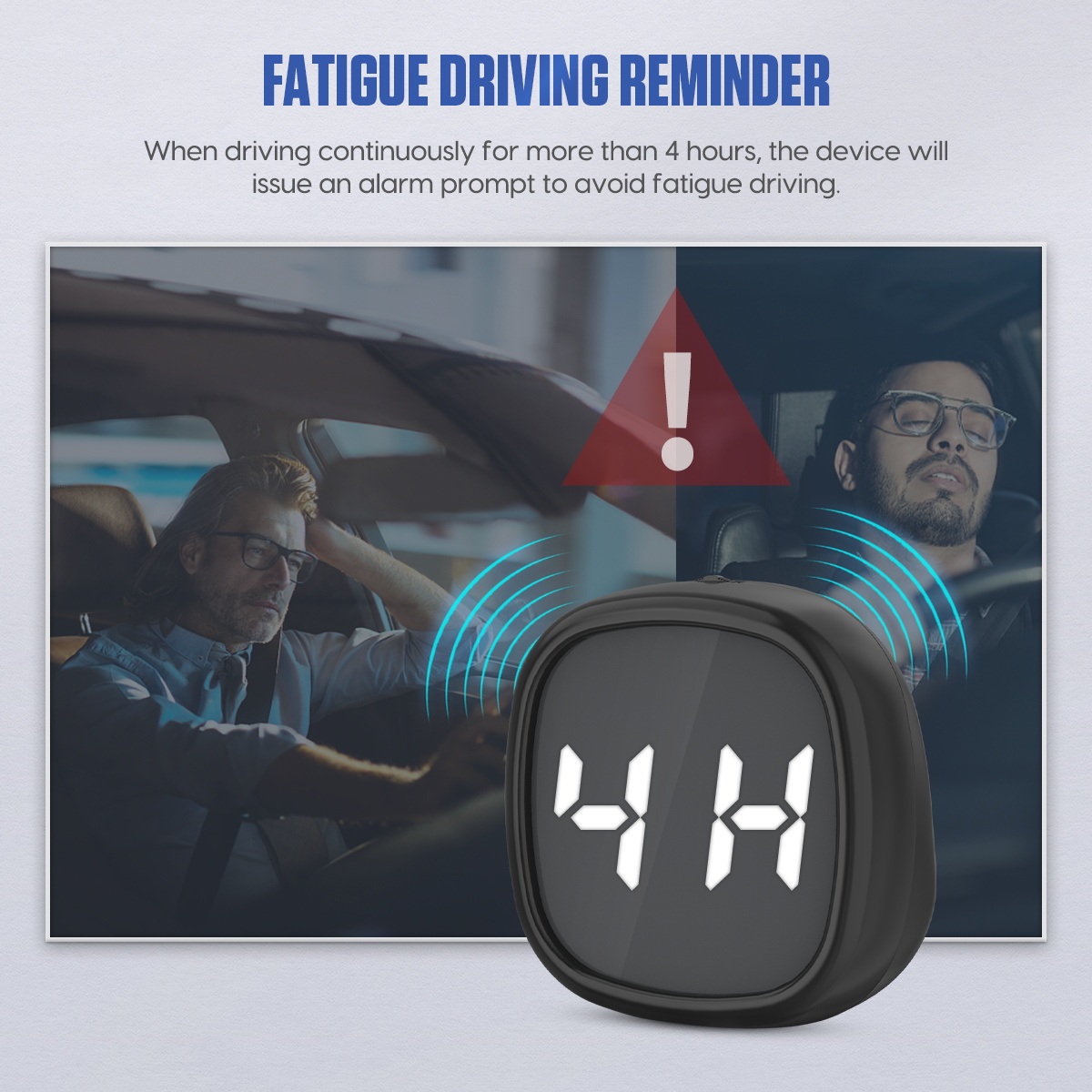
Four-hour fatigue reminder
The product graphic shows a 4H fatigue-driving reminder. Treat it as a minimum prompt to reassess and stop, not as evidence that four hours is always safe. Driver condition, night work, medication, heat and route complexity can require a break much earlier. If fatigue signs appear—heavy eyelids, missed signs, wandering attention or lane drift—stop safely regardless of what the M30 displays.
Verify speed before using compensation
6. Compare under a stable condition
Choose a safe, straight, open road where a qualified driver can hold a steady legal speed without interacting with the unit. A passenger or a preconfigured camera can record the M30 and a trusted reference. Compare only after both values stabilize. Do not compare during hard acceleration, braking, tight turns, tunnel entry or immediately after signal recovery; different update rates create a temporary difference even when both systems are functioning.
7. Apply compensation cautiously
Use vehicle speed compensation only when a repeatable offset remains across more than one steady-speed check. Record the baseline, unit and direction of error first. Make one small change while parked, repeat the same route condition and confirm that the correction improved rather than reversed the offset. Do not chase a one-time difference caused by satellite geometry, slopes, tire changes or display latency.
After adjustment, verify at low and moderate legal speeds. A single percentage or offset may not perfectly match at every speed. If the compensation interface or direction is unclear, leave the value unchanged and consult the printed manual supplied with the exact M30. Guessing whether plus makes the displayed number higher or lower can create a misleading speed indication.
Automatic brightness
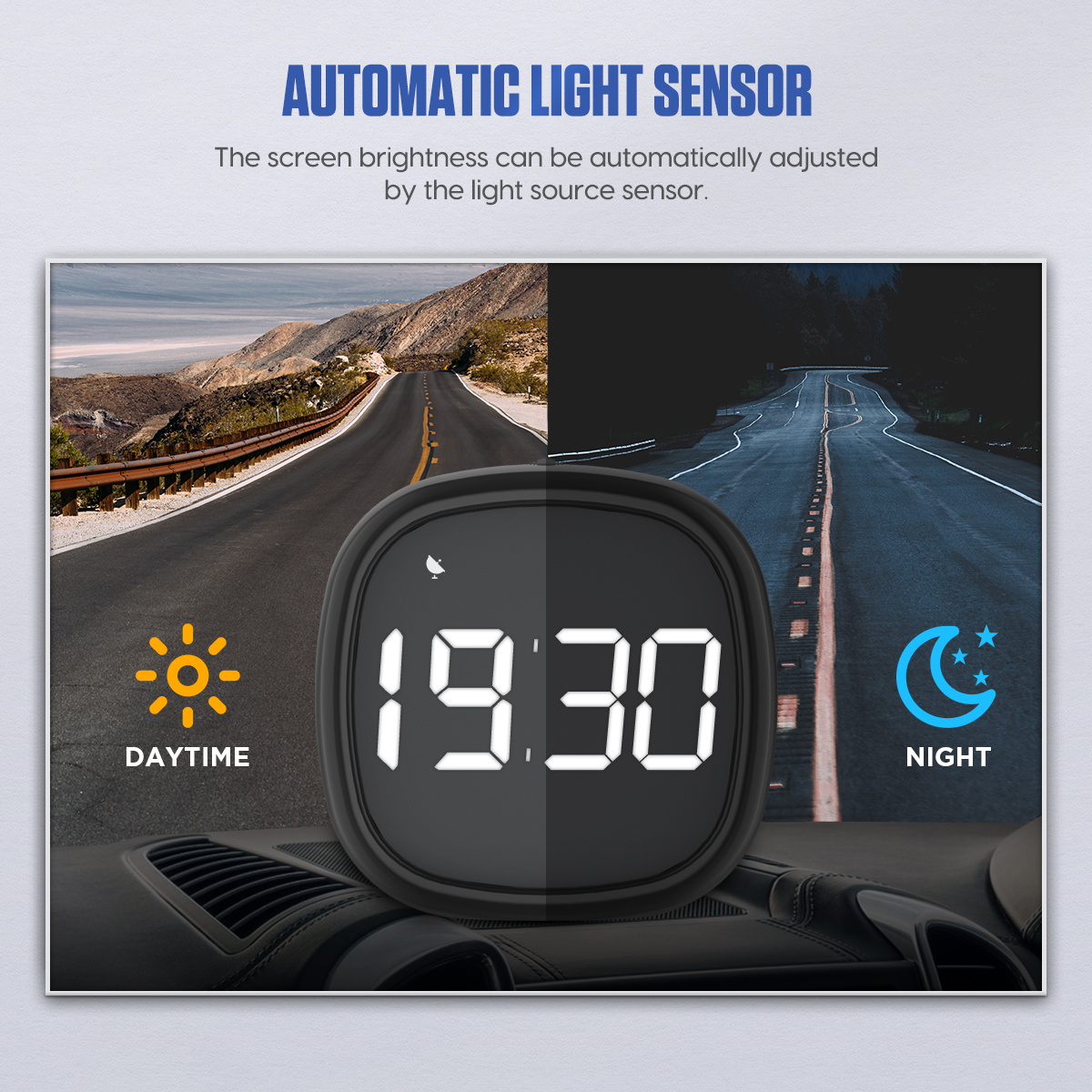
The light sensor adjusts display brightness between day and night. Do not cover it with tape, trim, a phone mount or cleaning residue. Test the screen through the full day/night range without staring at it while driving. If it remains too bright at night, stop and check sensor exposure and exact settings; do not place an opaque object over the entire device where it could become loose.
Troubleshoot reception and readings
| Symptom | Check first |
|---|---|
| No power | USB outlet state, cable seating, cable damage and vehicle accessory-power timing |
| No satellite speed | Move outdoors, clear roof/building obstruction and allow a fresh acquisition while stationary |
| Speed drops in a tunnel | Expected satellite blockage; use vehicle instruments and wait for open-sky reacquisition |
| Speed differs briefly during acceleration | Compare only at steady speed because displays can have different update rates |
| Persistent speed offset | Confirm unit, stable route, repeatability and current compensation value |
| Time is stable but offset | Time-zone/daylight configuration rather than repeated satellite reset |
| Screen too bright or dim | Light-sensor obstruction, mounting shadow, reflection and exact brightness settings |
| Does not sleep after parking | Vehicle USB outlet may remain live; verify outlet timing and included manual |
GPS limitations to expect
- Tunnels, underground parking and metal-roof structures can remove satellite reception.
- Tall buildings, cliffs and dense trees can reflect or block signals and delay a stable fix.
- A heated or metallized windshield can weaken reception; test placement before permanent mounting.
- The compass may need vehicle movement and should not be treated as a precision heading while stationary.
- GPS and vehicle speed displays can update at different rates during rapid speed change.
- A powered USB outlet can remain live after key-off even when another vehicle’s outlet switches off.
Final M30 checklist
- Mount is legal, secure, low and outside road, instrument and airbag obstruction zones
- Light sensor exposed and screen readable without glare
- 1.5 m USB cable protected from airbags, steering, shifter, pedals, heat and pinching
- Power behavior verified for accessory-on and vehicle-off states
- Initial satellite acquisition completed outdoors while stationary
- Speed unit confirmed as km/h or mph before alarms or comparisons
- Time, speed/compass, fatigue and compensation interfaces identified
- Overspeed threshold set only while parked and appropriate to operating policy
- Speed compared at stable legal speeds before compensation
- Any compensation change small, recorded and reverified
- Driver understands that GPS can be unavailable or delayed
- Fatigue reminder treated as a prompt, not permission to continue driving
The M30 works best as a glanceable satellite instrument, not as a screen to manage while moving. Mount it low and secure, preserve the airbag and control zones, acquire satellites outdoors and verify the active unit. Use compensation only for a consistent measured offset, expect signal loss in enclosed areas and keep the vehicle’s required instruments as the controlling reference. Those habits make the speed, time and reminder functions useful without asking GPS to solve conditions it cannot see.








Comments 0
Questions, fixes, and real-world diagnostic notes from readers.
Be the first to share a diagnostic result or ask a follow-up question.